
Epson Perfection V600 Driver: Complete Guide to Download, Install, and Optimize Your Scanner
The Epson Perfection V600 remains one of the most popular flatbed scanners for photographers, home users, and professionals who need high-quality film, photo, document, and artwork scanning. But to get the most out of this scanner, having the correct Epson Perfection V600 driver installed is essential. Without the proper driver, your scanner may not function correctly or may lose access to advanced features such as Digital ICE, color restoration, and film scanning support.
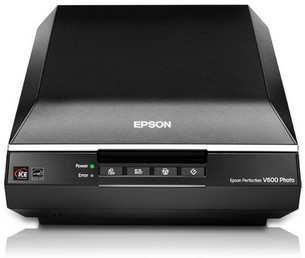
In this guide, we’ll walk through everything you need to know about the Epson Perfection V600 driver—how to download it, how to install it on Windows or Mac, troubleshooting tips, and how to keep your device running smoothly.
Epson Perfection V600 Driver
Why You Need the Epson Perfection V600 Driver
A driver acts as a bridge between your computer’s operating system and the scanner hardware. With the right Epson V600 driver:
- Your scanner can communicate properly with your computer.
- Advanced scan settings and features become available.
- Film scanning modes and Digital ICE correction work optimally.
- You get the best scan resolution and color accuracy.
- System stability and compatibility improve with OS updates.
Without the driver, you may experience issues such as the scanner not being detected, errors when launching Epson Scan, or missing scan modes.
Other Post: Epson Perfection V39II Driver
Where to Download the Official Epson Perfection V600 Driver
Epson provides official, up-to-date drivers for all major operating systems. For safety and reliability, always download your driver from Epson’s official website—not from third-party sites that may include outdated or harmful files.
Supported Operating Systems
The Epson V600 driver is typically available for:
- Windows 11
- Windows 10 (32-bit & 64-bit)
- Windows 8.1 / 8
- Windows 7
- macOS Ventura
- macOS Monterey
- macOS Big Sur
- Older macOS versions (depending on support)
Some macOS versions no longer support certain Epson Scan software, but Epson Scan 2 is available as an updated alternative.
How to Install the Epson Perfection V600 Driver on Windows
Follow these steps for a smooth installation on Windows 10 or Windows 11:
1. Download the driver
Visit the official Epson support page and select the driver that matches your OS version.
2. Run the installer
Once downloaded, double-click the installer file (usually ending with .exe).
3. Follow the on-screen instructions
The setup wizard will guide you step-by-step. Accept the license agreement and choose the installation location.
4. Connect your scanner
You may be asked to connect the Epson Perfection V600 using the USB cable. Make sure the scanner is powered on.
5. Complete installation
After installation, restart your computer. Once rebooted, open Epson Scan to check if the scanner is recognized.
How to Install the Driver on macOS
macOS users may have different installation requirements due to Apple’s changing driver framework.
1. Download the macOS driver package
Choose the correct version for your macOS release.
2. Install Epson Scan or Epson Scan 2
Depending on compatibility, macOS users may need to use Epson Scan 2, which supports newer macOS releases.
3. Grant necessary permissions
macOS may request security approval under System Settings → Privacy & Security. Make sure to allow the installer.
4. Restart your Mac
A reboot ensures the scanner is recognized properly.
Troubleshooting Epson Perfection V600 Driver Issues
Even with the correct driver, you may encounter occasional issues. Here are common problems and solutions:
1. Scanner Not Detected
- Check the USB cable and try another port.
- Avoid using USB hubs—plug directly into your computer.
- Reinstall the driver from scratch.
2. Epson Scan Not Opening
- Run the program as an administrator (Windows).
- Remove old versions of Epson Scan before reinstalling.
- On macOS, verify permissions in Privacy & Security settings.
3. Missing Film Scan Mode
- This usually means the wrong driver version is installed.
- Reinstall the full Epson Scan package, not only the basic driver.
4. “Communication Error” Message
- Restart the scanner and computer.
- Check for OS updates that may require a newer Epson driver.
How to Keep Your Epson V600 Running Smoothly
- To ensure long-term performance:
- Update your driver regularly—especially after OS updates.
- Clean the scanning glass and film holders using a microfiber cloth.
- Enable Digital ICE sparingly (it increases scan time).
- Use the correct resolution settings for different media types.
- Store film holders in a dust-free environment.
A well-maintained scanner paired with an updated driver ensures excellent results for years.
Final Thoughts
The Epson Perfection V600 is a fantastic scanner for anyone who needs high-resolution scanning for photos, film, slides, or documents. However, it performs at its best only when the correct Epson Perfection V600 driver is installed and kept up to date. Whether you’re using Windows or macOS, ensuring your driver is properly set up will unlock all the powerful features the V600 has to offer.